
Cut the best parts. Not your whole day.
Drop in a URL or a local video. Klipros finds strong moments, follows faces, writes subtitles, then creates vertical clips on your own PC.
Start free. Log in to get your first 3 lifetime renders without a watermark; rendering continues with a watermark afterward.
Everything you need for ready-to-post clips.
See how the app works with high-quality video
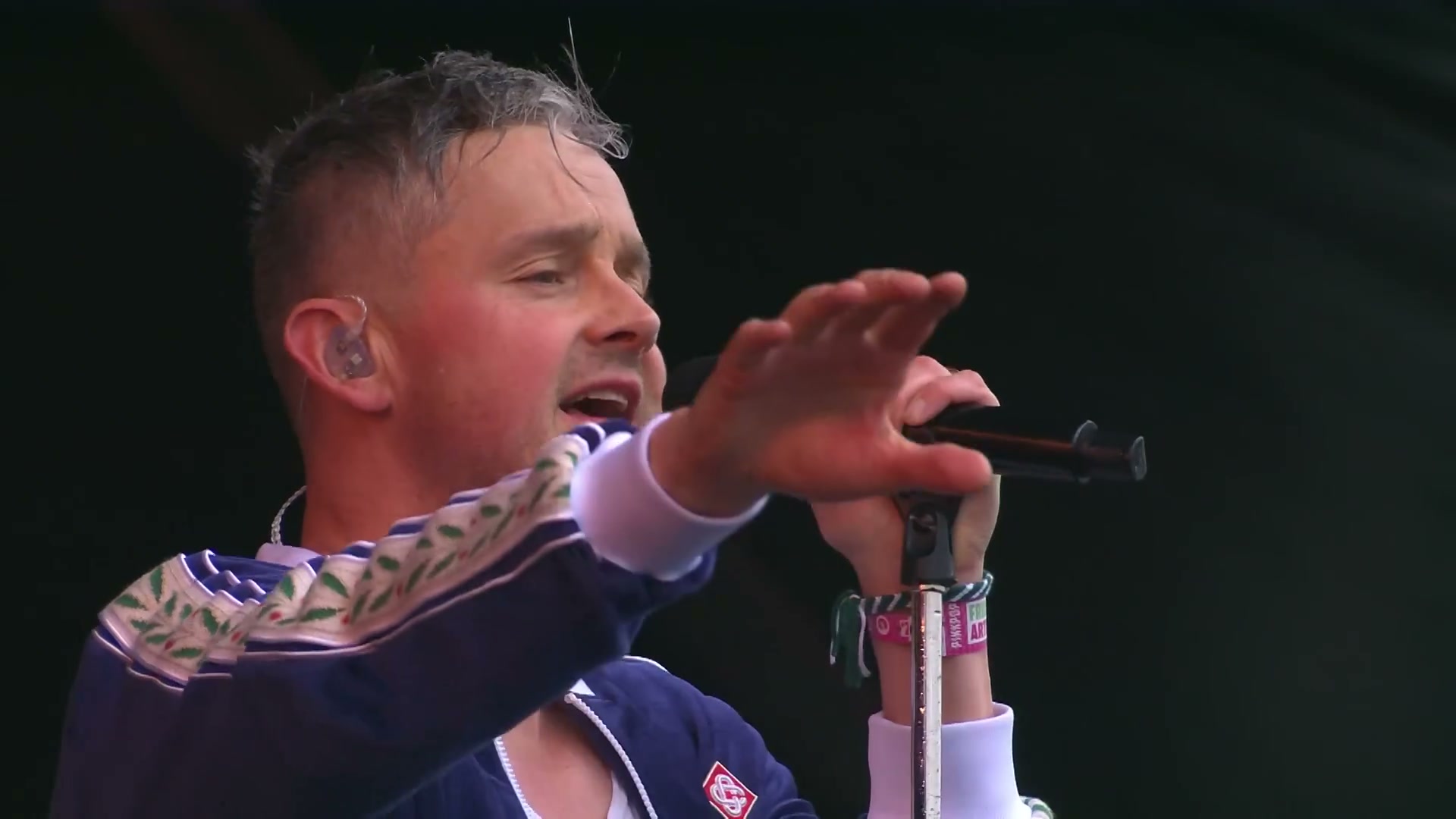
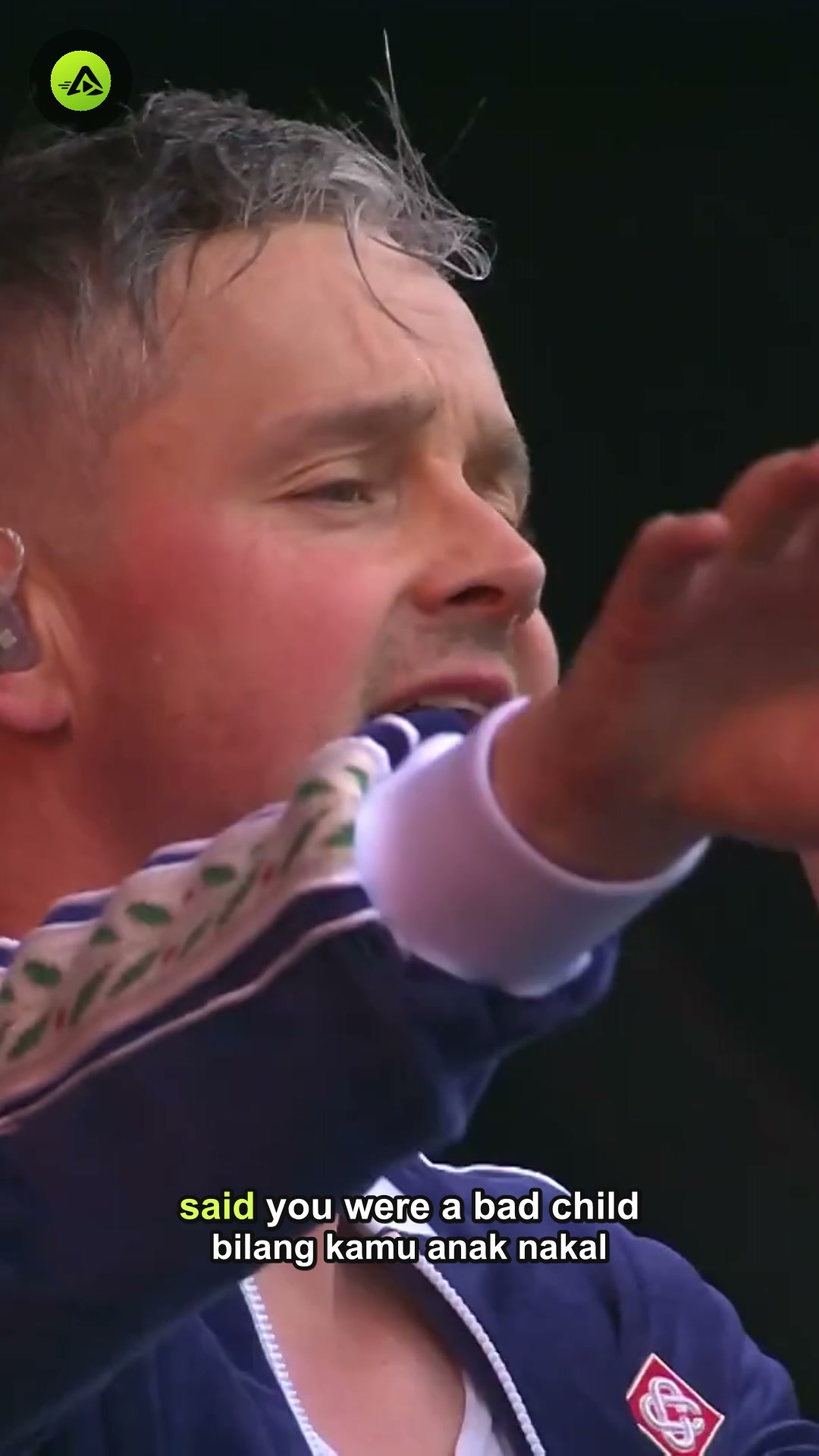
Source: Keane - Live at Pinkpop 2024 (01:16:07, 1080p 16:9). Processed locally with NVIDIA NVENC.
Analysis & result details
Kualitas Klip: 83.1% / Boundary Confidence 100%
Speaker separation & audio peak detection / NVIDIA NVENC / 1080x1920
START IN A FEW MINUTES
See how Klipros works.
Follow this short tutorial from a long video to a ready-to-use vertical clip.
From source video to result.
Learn how to add a video, review moment choices, adjust subject position and subtitles, then create the result on your own PC.
Open on YouTube ↗Made with Klipros
Real output, not a sample screen.
Every clip comes from the official Klipros YouTube channel. Tap one to watch here, or open it directly on YouTube.
15 picks from popular clips across a range of content, curated as of September 25, 2026.
From source to ready-to-post
One workflow. A lot less busywork.
Find the parts worth watching again.
Analysis density adapts to the video's pace. Calm conversation is scanned efficiently; fast action gets checked much more tightly.
Faces, expressions, and action stay in frame.
Smooth tracking picks one speaker, two speakers, gameplay + face camera, or the full video automatically.
Original or two-language subtitles.
Foreign speech can display alongside an Indonesian translation. Unicode channel names stay readable.
Use whichever GPU you have.
NVDEC, CUDA analysis, layout assembly, and NVENC all run on your PC without uploading the source video to a processing server.
EDIT WORKSPACE
Automatic first. Correct only what needs it.
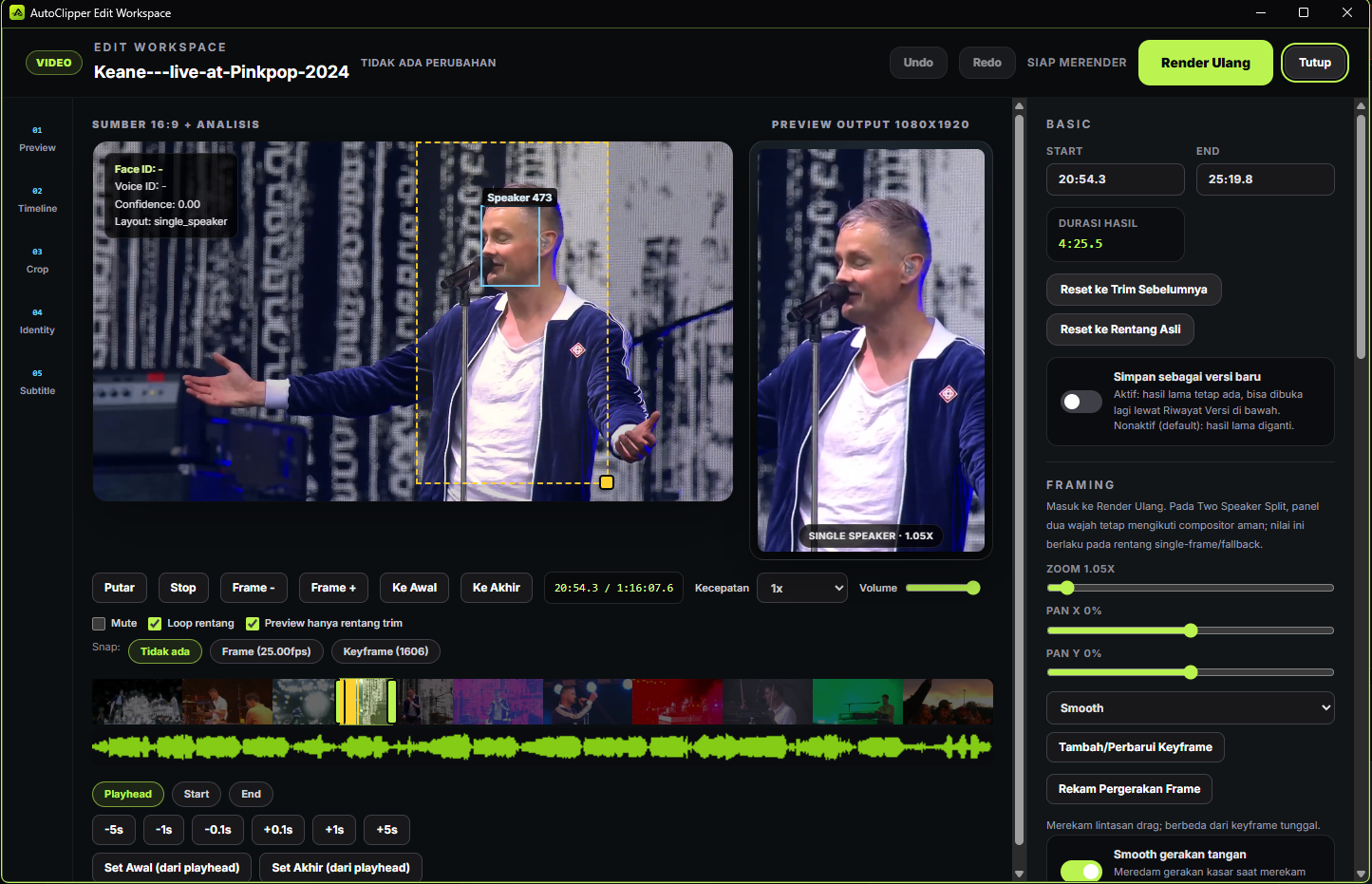
The automatic result is not the last word. Open any clip in Edit Workspace, see what the pipeline chose, then adjust trim, framing, or subtitles without starting over.
- 01
AI decisions stay visible, not hidden
The 16:9 source, face box, crop area, active layout, and 9:16 output preview sit side by side. You can see why a frame was chosen before rendering.
- 02
Trim to the exact frame
The filmstrip and waveform preserve visual and audio context. Step by frame, 0.1 seconds, 1 second, or 5 seconds to set the exact beginning and end.
- 03
Take control of automatic framing
Drag the crop directly, adjust Zoom and Pan, then save Hold, Linear, or Smooth keyframes. The 1080×1920 preview reads the same framing plan as the render.
- 04
Record frame movement, then smooth it
Move the frame while the video plays to correct tracking. Smoothing reduces rough hand movement without disabling automatic tracking after recording stops.
- 05
Subtitles remain editable
Edit cues, language, font, size, color, and position while seeing the result. Source, translated, and bilingual modes remain in one workspace.
- 06
Re-render without sacrificing the old result
Undo and Redo are available. Save as a new version to preserve the earlier result, then render only the clip being corrected.
Open it from a clip card in Results: Edit → Edit Video. Screenshot from version 1.8.8; the layout and controls may differ slightly in the version you have installed.
UPLOAD & SCHEDULER
Upload now. Or schedule everything.
Select one or many clips, choose destination accounts, then run Publish All. Klipros builds each platform queue and time slot so you do not upload them one by one.
CREATOR PLUS / MULTI-STREAM · BETA
You stream. Klipros does the cutting.
Paste a livestream link and let it run. Klipros watches the broadcast on your PC, catches hook moments from audio spikes, on-screen action, and chat bursts, then turns them into upload-ready vertical clips without waiting for the stream to end.
- Hooks detected automatically, clips queue themselves
- Live chat right inside the monitoring dashboard
- Local rolling buffer, no cloud recording
Simple pricing
Start free. Scale up as production grows.
Choose 1, 3, 6, or 12 months at checkout. Multi-month plans cost less per month; the final total always shows before you pay.
Try the full pipeline
Rp0First 3 lifetime renders without a watermark for a logged-in account; unlimited watermarked rendering afterward.
- Highlight detection
- Smart framing
- Subtitles + local render
Klipros
See price in the appMonthly price
For creators who regularly turn long video into many pieces of content.
- ∞No per-minute production quotaProcess as much long video as your PC can handle.
- +Every source in one queueURLs, playlists, livestreams, batches, and local files.
- ✓Control the result before renderingReview moments, framing, subtitles, ratios, and duration.
- PCGPU or CPU, still localStandard analysis and rendering run on your device. AI Corrections through an API are optional.
Multi-Stream Live
See price in the appMonthly price
For livestream creators capturing one moment from several angles.
- 01Synchronize several livestreamsBring gameplay, POV, cameras, and reactions into one timeline.
- 02Keep the strongest angleParty Clip arranges cross-source moments for your review.
- 03Rolling buffers stay localRecent segments remain on your PC without cloud recording.
- 04Recover source when availableA damaged buffer can be fetched again from its original source.
Download & Subscribe takes you to the download. Plan selection and payment happen inside the app. Prices on this page could not be confirmed with the service just now; the final total is shown before you pay.
FAQ
Before you start.
Is source video uploaded to a server?
Standard mode processes video on your PC. When optional AI Corrections are enabled, selected audio and/or timestamped text is sent to the provider at your Base URL. Publishing sends selected clips to the destination platform.
Can I use it for free?
Yes. Rendering without an account is unlimited with a watermark. Login gives you the first 3 lifetime renders without a watermark. The clean-render limit applies per account and device.
Which sources can be processed?
Single URLs, URL batches, playlists, livestreams, and local video files can enter the same queue.
Is a GPU required?
No. CPU processing is always available. Compatible NVIDIA, AMD, or Intel GPUs accelerate the stages that support it.
How is render quality chosen?
Regular videos require at least a 1080p source. Livestreams may use 720p if 1080p isn't available. Klipros never invents detail through AI upscaling.
Is there a video-duration or clip limit?
The Base plan has no minute quota. Practical limits come from disk space, RAM, device temperature, and your PC's processing time.
Can automatic results still be corrected?
Yes. Clip candidates can be reviewed before rendering. Moments, trim boundaries, framing, subtitles, aspect ratio, and output settings remain under your control.
Do I need to install dependencies or provide API keys?
Not for standard mode. Optional AI Corrections use your Base URL and API Key with Audio, Text with timestamp, or both. AI failures preserve local timing.
Will work disappear if the app closes?
Source, analysis cache, configuration, and history remain local. Work eligible for recovery can continue without always starting over.
How are application updates installed?
The app checks for updates automatically. Changed files are SHA-256 verified, atomically replaced, and have a rollback path if an update fails.
Can I stop the subscription?
Yes. Plans and registered devices are managed through ICXHNK Account. The purchase total is shown before payment.
Your next production
Make long footage work harder for you.
Download Klipros for Windows. Log in for your first three renders without a watermark, then continue production with Base.
Purchase your plan inside the app after Klipros is installed.
Windows 10/11 • x64 • Local ProcessingInstallation details
Downloading Klipros for Windows means downloading an installer that is not yet code-signed -- Windows may show an Unknown Publisher or SmartScreen warning the first time you run it. SHA-256 checksum verification is still provided with every release. Rendering runs on your PC. Optional AI Corrections send selected input to your provider; publishing sends selected clips to destination platforms.
COMMUNITY & SUPPORT
Questions? Meet the community.
Discuss ideas, report bugs, or ask an admin for help. Choose Discord for a quick response; use email for private matters.
WHAT'S NEW
Recent changes, not roadmaps.
Highlights from the latest Klipros release notes. The full history lives inside the app under the What's New menu.
New name, Klipros
Official logo, a dark theme with blue accents, and the klipros.sbs product domain. Accounts, licensing, and the clipping pipeline retain existing services.
Optional AI Corrections
Enter a Base URL and API Key, then select Audio or Text with timestamp to refine hooks and topic boundaries. Local mode remains the fallback if AI fails.
New guides for short-form video workflows
The new article hub covers turning long videos into Shorts, cutting podcasts into clips, and running local auto clipping on Windows.
Promotions from Identity
Package discounts and remaining spots now appear automatically on the pricing page. The same price applies to new Mayar or PayPal payments in the app.
New layouts: Podcast and Full Frame
Podcast always fills the 9:16 screen and spotlights one speaker, including a face at the edge of the video. Full Frame shows the whole video with a blurred backdrop, so slides, screens, and gameplay are never cut.
GPU rendering, 10-24x faster
With NVIDIA NVENC, every layout now renders on the GPU first. In tests on real videos, a 30-second clip went from 42-190 seconds to 2-8 seconds, and the result still matches the Edit Workspace preview.
Multi-Stream keeps up with the live broadcast
Analysis now takes about 1 second per segment, so hook detection no longer falls behind the broadcast. A failed speech check no longer drops the moment, and stream cards show the segments and moments detected.